
Welcome to the Future: Meet Your New AI Colleague
If you keep up with tech trends, you have probably heard the massive buzz surrounding OpenClaw. With over 215,000 GitHub stars under its belt, this tool is completely changing how we manage our daily tasks. But before we get carried away with the hype, let me share a quick disclaimer. Because OpenClaw takes real action on your computer, you must monitor its initial workflows closely to ensure everything runs smoothly. Treat it like training a new junior staff member.
What is an Agentic AI?
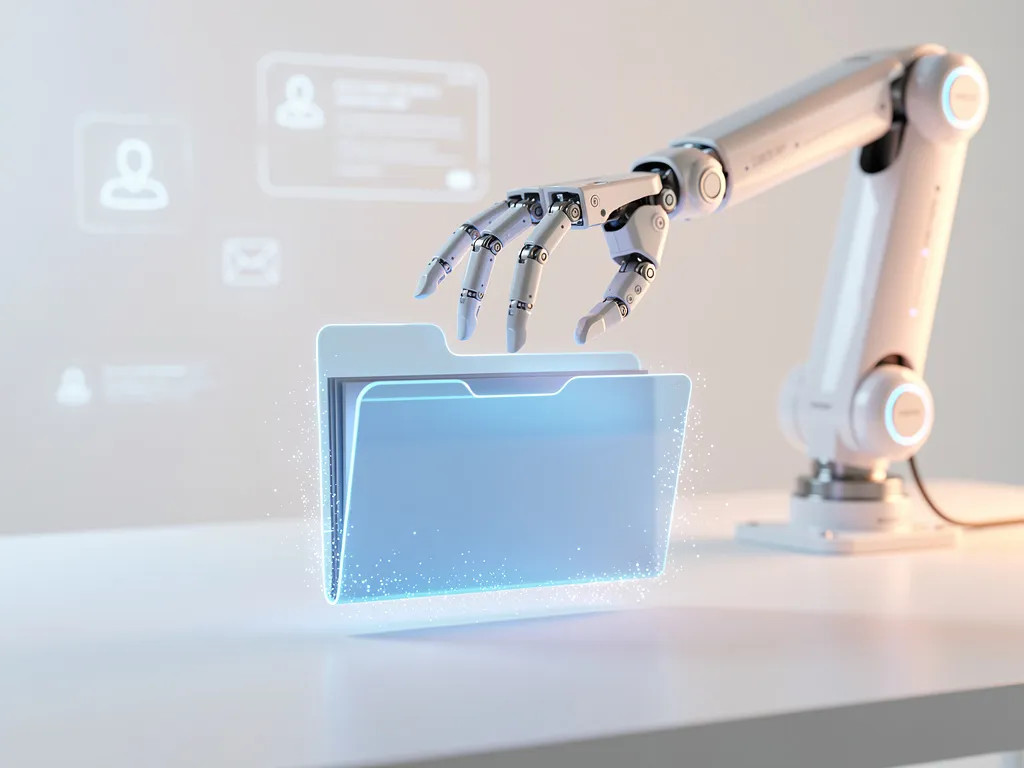
We are seeing a massive shift right now. We are moving away from chatbots that just spit out essays, and we are moving towards software that actually does the hard work. This is the difference between a passive tool and an active tool. As Vignaraj Ravi wrote on Medium in February 2026, “Unlike chat-only tools like ChatGPT, OpenClaw is an agentic AI — it doesn’t just respond; it acts.” This makes it the ultimate AI personal assistant for business, fully capable of clicking, typing, and managing files on your behalf.
OpenClaw vs traditional office AI tools
When you look at OpenClaw vs traditional office AI tools, the differences are crystal clear. Most major tech companies put their software behind a “walled garden.” They expect you to upload all your sensitive data to their cloud servers. OpenClaw is totally different. It runs totally locally on your own hardware. Plus, it has recently introduced the “Star Office UI.” This is a neat, visual pixel-art dashboard that replaces those scary, clunky terminal screens. It finally gives your local language model a friendly, easy-to-use interface.
The Local-First Privacy Advantage
Keeping your context and files on your own device is perfect for data sovereignty. You do not have to worry about your client details leaking onto the public internet. This local-first approach makes it the most secure and reliable open source AI agent for office tasks available right now.
Setting up OpenClaw for team productivity
Getting things running might sound tricky, but Setting up OpenClaw for team productivity is quite straightforward if you follow the right steps. Let us look at what your computer needs to run this clever tool smoothly.
Hardware Requirements and Basics
Here is a simple table showing exactly what you need to get your new digital worker online:
| System Component | Minimum Requirement | Recommended for Office Use |
|---|---|---|
| Operating System | Mac / Windows / Linux | M-Series Mac or Intel Gen 12+ Windows |
| Memory (RAM) | 8GB Minimum | 16GB+ for smooth multi-tasking |
| Software Stack | Node.js v18+ | Latest stable Node.js |
| Base Setup UI | Terminal / Command Line | Star Office UI dashboard |
The Speedy Installation Guide
If you are ready to start, just open your terminal. Paste in this exact command: curl -fsSL https://openclaw.ai/install.sh | bash. This script downloads all the core files you need. Once it finishes, simply type openclaw onboard. This triggers a smooth, guided configuration wizard that sets up your preferences. Afterwards, I highly recommend adding the openclaw start command to your operating system’s “Login Items.” This means your brilliant new Personal AI assistant for Mac/Windows office workspaces will be awake and ready 24/7.
Multi-Device Sync for Home and Office
A common problem is wanting your agent to exist on both your work desktop and your home laptop. You do not want two separate agents; you want one agent that remembers everything. The easiest fix is the “Tailscale Method.” Keep OpenClaw running on a single, powerful machine (like an always-on Mac Mini). Then, install the Tailscale app on your other computers. By running the command tailscale serve http://localhost:3000, you create a private, secure network bridge. Now, you can chat with your main office agent from your couch at home.
Automating office workflows with OpenClaw
Let us move past all the tech jargon and look at real value. Automating office workflows with OpenClaw adds massive productivity to your daily grind. This is about sorting out the exact chores that eat up your afternoon.
AI agent for email management

One of the greatest headaches for any business owner is a crowded inbox. Luckily, you can configure OpenClaw as an incredibly smart AI agent for email management. You can authorise it to securely read your email threads overnight. When you wake up, it will provide a brief summary of the most important messages. You can even ask it to draft professional replies to common client enquiries, allowing you to just click “send” while you drink your morning coffee.
AI-driven calendar management
Do not let scheduling steal your focus. By tapping into AI-driven calendar management, OpenClaw can completely map out your day. For instance, you can use it to record your meeting notes. It will automatically read through the text, find the action items, and slot them straight into your calendar. It manages all this without requiring you to do any tedious manual data entry.
OpenClaw for project management automation
Digital clutter slows everyone down. You can utilise OpenClaw for project management automation to keep your workspace pristine. Imagine asking your assistant to quickly organise your messy download folders based on file types. It can also format complex spreadsheets or rename hundreds of files in seconds. It handles all those complex file management tasks so you can get back to actual work.
Personas and Hybrid AI Power
The community has created some brilliant configuration files that you can download. You can assign different “Personas” to your agent, like a “Blogger,” a “Coder,” or a “Job Applier.” To make this super cost-effective, you should use a hybrid setup. Route your high-volume, repetitive chores through the DeepSeek API. This saves heaps of cash, often keeping your monthly running costs down to around $5. Then, you can reserve OpenAI’s more expensive GPT-4 Turbo model for the really tricky tasks that demand high-level reasoning.
Secure AI agent deployment in office
Because OpenClaw takes real action, we must talk about safety. Giving software the power to move files around means you have to be extra careful. Secure AI agent deployment in office networks is a serious matter.
Why Security Matters with Agentic AI
When software can click and type, you cannot just trust everything it encounters. You have to treat all automated inbound messages as “untrusted input.” Be extremely cautious with how you store your precious API keys inside the ~/.openclaw/openclaw.json folder. Protect those keys like you would protect your bank pin.
Sandboxing and Safe Permissions
Always ensure you keep the "sandbox": true flag turned on in your configuration settings. This is a vital step. It limits the AI’s file-write permissions. This stops the agent from accidentally deleting or moving a crucial master document. Also, set up safe direct message policies, like “pairing mode,” so random unauthorised users cannot sneak onto your network and give your AI commands.
OpenClaw skill development for office
The OpenClaw platform is highly expandable. Currently, over 3,000 community skills exist on ClawHub. However, managing OpenClaw skill development for office workflows safely is critical. Before you ever install a new plugin using the command openclaw skills install [github_url], you must run an openclaw security audit. This ensures the code you are adding is safe to use.
OpenClaw productivity tips

Now that you have the basics down, it is time to boost your speed. We have gathered the absolute best OpenClaw productivity tips to help you achieve that 2x to 5x productivity boost everyone is raving about online.
Top Tips for Maximum Efficiency
Here is a punchy checklist of habits that will turn you into an absolute power user:
- Tip 1: Keep your agent fast by regularly clearing out its old memory. Run
openclaw sessions archiveonce a week. This stops the agent from lagging when it gets overwhelmed with too much background reading. - Tip 2: Use the DeepSeek API setup for simple writing tasks like blog drafting. Their system is entirely compatible with OpenAI, meaning you do not need to make any complex code changes to save money!
- Tip 3: When making Agent Personas, give them hyper-specific rules. For instance, attach a
resume-tailortool to one specific agent, rather than giving a single agent access to every tool on your machine. - Tip 4: Sometimes things get stuck. Routinely check on your agent’s background health using the
openclaw doctorcommand. It will instantly help you troubleshoot broken API links or connectivity errors. - Tip 5: Make the very most of OpenClaw office automation by assigning it the repetitive work you hate doing the most. Delegating these terrible chores first will bring massive, immediate relief to your workday.
Embracing the Visual Interface
Finally, do not forget to actually use the Star Office UI. As YouTuber Mike’s AI Forge stated in a recent video: “This isn’t just a basic text-box tutorial. This is a full hands-on guide showing you how to give your local LLM a visual environment.” Giving your agent a tidy graphical space makes working with it much more enjoyable.
Common Mistakes to Avoid
Even though it is brilliant, mastering this software takes a little time. Be honest with yourself about the learning curve. Learning How to use OpenClaw for work requires just a bit of patience.
Dodging the Learning Curve Trap
Many people give up on local language models because they hit a small snag on the first day. Set aside a quiet afternoon to get your system running smoothly, and do not expect perfection within the very first hour.
Mistakes You Need to Avoid
Look out for these incredibly common rookie errors when you first start out:
- Leaving Sandbox Mode Off: Giving your AI full, unrestricted system access on day one is a fantastic way to end up with a completely disorganised hard drive.
- Using Expansive Models for Simple Tasks: Burning through your expensive OpenAI budget to sort folders is a massive misstep. Use DeepSeek to get the same job done for pennies.
- Skipping the Security Audit: Installing third-party GitHub repository tools without running an audit first can introduce highly risky scripts to your private network.
- Ignoring Multi-Device Setups: Trying to run two separate agent instances (one at work and one at home) will just give you a headache. Securely bridge one main instance using the Tailscale method instead.
Wrapping Up: Your Next Steps
Putting an active assistant on your desktop will totally shift how you handle your job. By stepping away from the old walled-garden chatbots, you can take true control of your data.
The Verdict on OpenClaw
When you look at the speed, privacy, and skill base, it is easy to see why OpenClaw ranks securely among the Best AI agents for professional use. The jump from a passive helper to an active, action-taking mate is simply a game-changer.
Join the Community
If you are ready to take the plunge, it is time to start building your setup. You can find all the files and join the active developer community over at the official OpenClaw GitHub repository at https://github.com/openclaw/openclaw. For up-to-date guides, plugins, and full documentation, make sure to visit their main website at https://openclaw.ai/. Have fun, stay secure, and enjoy your newly automated workday!