
Efficient client file management saves time, reduces errors and makes billing straightforward. This guide shows how to use Finder Tags and Smart Folders to organise client files with colour tags and automatic smart rules — tailored for freelancers, consultants and small businesses. Follow the step‑by‑step workflows, real‑world examples and practical tips to build a dependable, low‑maintenance system.
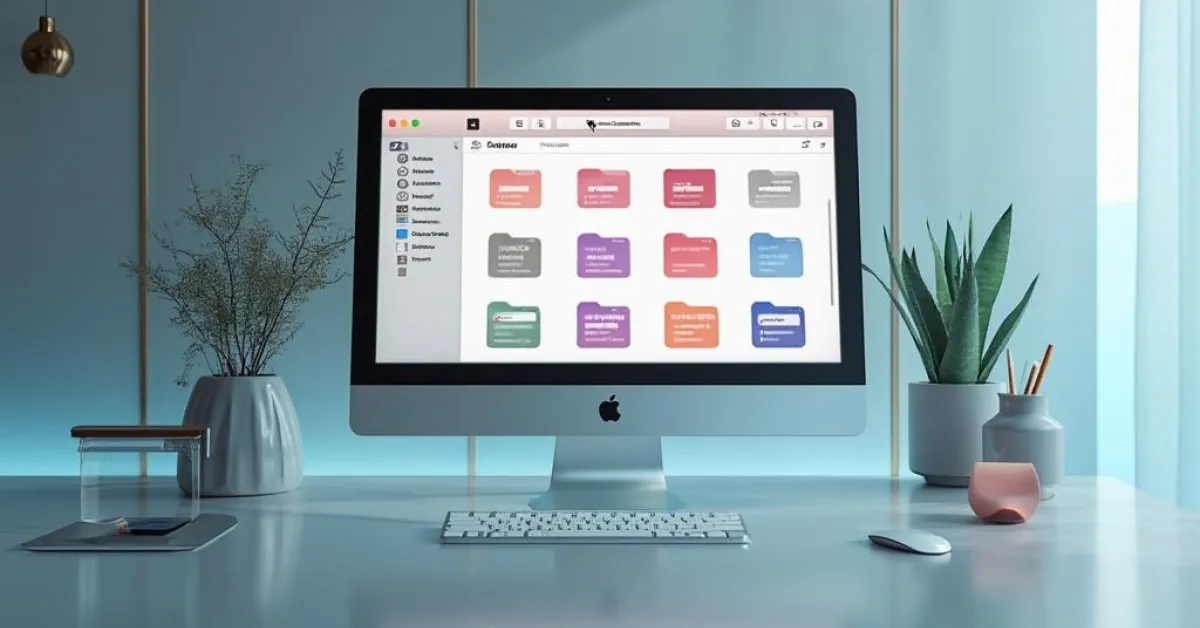
Why use Finder Tags and Smart Folders for client files?
Tags add a second layer of metadata to files without changing folder structure. Smart Folders let Finder surface files that match rules you set, updating automatically. Together they let you:
- See client status at a glance via colour tags.
- Automate file categorisation by client name, project type or dates.
- Keep a clean folder hierarchy while still finding files quickly.
- Reduce duplication and speed up invoicing and delivery.
This approach suits solo practitioners and small teams who need quick access to current work without complex project-management tools.
Plan a tag and folder strategy first
Start with a simple, consistent plan. Too many tags defeat the purpose. Use this three-tier system as a foundation:
- Status tags (colour): Active, Pending, Completed, Archived
- Client tags (text colour or secondary tag): client name or short code (e.g., ACME, JSMITH)
- Type tags (optional): Contract, Invoice, Design, Draft, Final
Suggested colour mapping (pick what reads best to you):
- Red — Pending (requires action)
- Blue — Active (current projects)
- Green — Completed (delivered)
- Grey — Archived (old projects)
Use short client codes rather than full names for consistent tagging (e.g., CL-ACME, CL-JS). Record your tag list in a simple text file or spreadsheet so everyone on your team matches the same scheme.
Set up tags in Finder
- Open Finder > Preferences > Tags.
- Drag colours into the order you prefer. Right‑click a tag to rename it; use your client codes and status labels.
- Keep the Tag sidebar tidy — only show the tags you use often.
Tip: Use a single colour for status tags and a separate text tag for client identity. That keeps colour meaning consistent across clients.
Tag files and folders: practical steps
- To tag a file: select it in Finder, right‑click > Tags > pick tag(s), or use the tag field in the Finder toolbar.
- To tag multiple items: select them, then add tag once. Finder applies the tag to all selected items.
- To tag on save: in many Mac apps (Pages, Word, Preview), you can add tags when saving a file.
Example: Save “Proposal — ACME — 2025-05-03.pdf” and tag it with “CL-ACME” and “Blue: Active”. Naming plus tags makes searching faster.
Create Smart Folders for automatic organisation
Smart Folders are saved Finder searches. They don’t move files; they show files that meet your criteria.
How to create a Smart Folder for a client:
- In Finder, choose File > New Smart Folder.
- Click the ‘+’ button on the top right.
- Build rules, for example:
- Kind is Document
- Name contains ACME
- Tags includes CL-ACME
- Click Save, give it a clear name like “ACME — Active”, and check “Add to Sidebar” for quick access.
Smart Folder examples you should create now:
- “Active Projects” — Tags includes Blue: Active
- “Pending Action” — Tags includes Red: Pending
- “ACME — All Files” — Tags includes CL-ACME
- “Invoices — Last 30 Days” — Kind is PDF AND Name contains invoice AND Last modified within 30 days
Use multiple criteria with the + button. Hold Option to change the + into an ellipsis and add nested OR/AND groups.
Real‑world workflows
Workflow 1 — New client intake (freelancer)
- Create a folder ~/Clients/ACME for long‑term storage.
- Save incoming contracts, briefs and receipts into that folder.
- Immediately tag new files: CL-ACME + Blue: Active.
- Smart Folder “ACME — Active” shows all active items. When you finish deliverables, change the status tag to Green: Completed.
Workflow 2 — Consultancy pipeline (small team)
- Central shared drive (iCloud/Dropbox) holds master folders.
- Use tags for client + status. Team members tag files when they update them.
- Shared Smart Folders in Finder show everyone the same live view (each user must create the same Smart Folder locally, because Smart Folders save on each Mac).
- Use a Smart Folder for billing: Files tagged Invoice AND Last modified within billing period.
Workflow 3 — Quick triage of incoming email attachments
- Save attachments to ~/Inbox \ Attachments.
- Create a Smart Folder “Unsorted Attachments” filtering files without client tags.
- During triage, tag attachments and move to the client folder if you prefer.
Advanced rules: tag by filename, date or location
You can make rules that match client names, project codes or file types.
Examples:
- Auto-show all briefs: Kind is Document AND Name contains “brief” AND Tags does not include Completed.
- Show deliverables due this week: Kind is Document AND Last modified within 7 days AND Tags includes Blue: Active.
- Keep invoices together: Kind is PDF AND Name contains invoice OR Tags includes Invoice.
Use partial matches like “ACME” or client codes. Consider including the client short code in filenames to catch files that aren’t tagged yet.
Automating tagging for speed
Manual tagging works, but you can automate repetitive steps.
Options:
- Shortcuts (built into macOS): Create a Shortcut that watches a folder and applies a tag when a filename contains a client code. Run it on demand or as a Quick Action.
- Folder Actions: Attach an Automator action to a folder that tags incoming files based on filename patterns.
- Hazel (third‑party): Hazel watches folders and applies rules to move files, tag them or run scripts. It’s robust for more complex automation.
Example Shortcut pseudocode:
- Trigger: Run Shortcut on selected files or on new files in folder.
- If filename contains “ACME” then Add Tag “CL-ACME” and Add Tag “Blue: Active”.
Automate with care: test rules on sample files to avoid mis‑tagging.
Naming conventions and file structure
Tags reduce the need for deep folder trees, but consistent names help. Use this filename pattern:
YYYY-MM-DD_ClientCode_DocType_Version.ext
Example: 2025-05-03_ACME_Proposal_v1.pdf
Folder structure suggestion (minimalist):
- Clients/
- ACME/
- Contracts/
- Deliverables/
- Invoices/
Keep most work in the client folder and use Smart Folders to surface what you need.
Sharing and syncing considerations
- iCloud Drive and Dropbox preserve Finder tags for files they sync, but behaviour varies by app and OS version. Test with a sample file.
- If your team uses different Macs, ensure everyone adopts the same tag names and colours. Export your tag list or distribute a short setup guide.
- Tags are stored in file metadata. When exporting to non‑Mac systems, tags may be lost.
Archiving and retention
When a project completes:
- Change status tag to Green: Completed.
- Move the entire client folder into an Archive folder or change tags to Grey: Archived.
- Create a Smart Folder “Archived Clients” that lists grey‑tagged files for quick retrieval.
Regularly review archived items for deletion or long‑term storage to keep active Smart Folders uncluttered.
Troubleshooting common issues
- Missing tags in search: Check Finder Preferences > Advanced and ensure tags are enabled in the sidebar and search indexing is complete.
- Shared Smart Folder not showing same results for a teammate: Smart Folders store search criteria locally. Share the criteria or export a saved search via instructions.
- Tags not syncing across devices: Verify iCloud Drive or your sync service supports Finder tags and that files are fully uploaded.
Best practices summary
- Keep the tag set small and documented.
- Use client codes in filenames and a client tag on files.
- Rely on Smart Folders for views, not to store files.
- Automate repetitive tagging with Shortcuts/Automator/Hazel.
- Add Smart Folders to the Finder sidebar and include them in your daily workflow (invoicing, review, delivery).
Example setup checklist (30 minutes)
- Define your tag list and colour mapping (10 minutes).
- Create client codes and a filename template (5 minutes).
- Add tags in Finder Preferences and show key tags in the sidebar (5 minutes).
- Create 4 Smart Folders: Active, Pending, All files for a key client, Invoices this month (10 minutes).
With a short upfront investment, Finder Tags and Smart Folders cut the time you spend hunting files.
Final tips
- Use tags as your living project board: change a file’s status tag to move it between Smart Folders.
- Keep tag names short and searchable.
- If you work with non‑Mac clients, export final deliverables to appropriately named files since tags may not survive non‑Mac transfers.