
Staring at the exact same monitor for your morning spreadsheets and your evening Netflix binges can quickly become incredibly draining. It creates a fuzzy blur where the end of a busy workday and the start of your relaxing evening become practically indistinguishable. With 81% of modern workers now expecting some form of remote work support, finding a reliable way to establish healthy daily routines is more critical than ever.
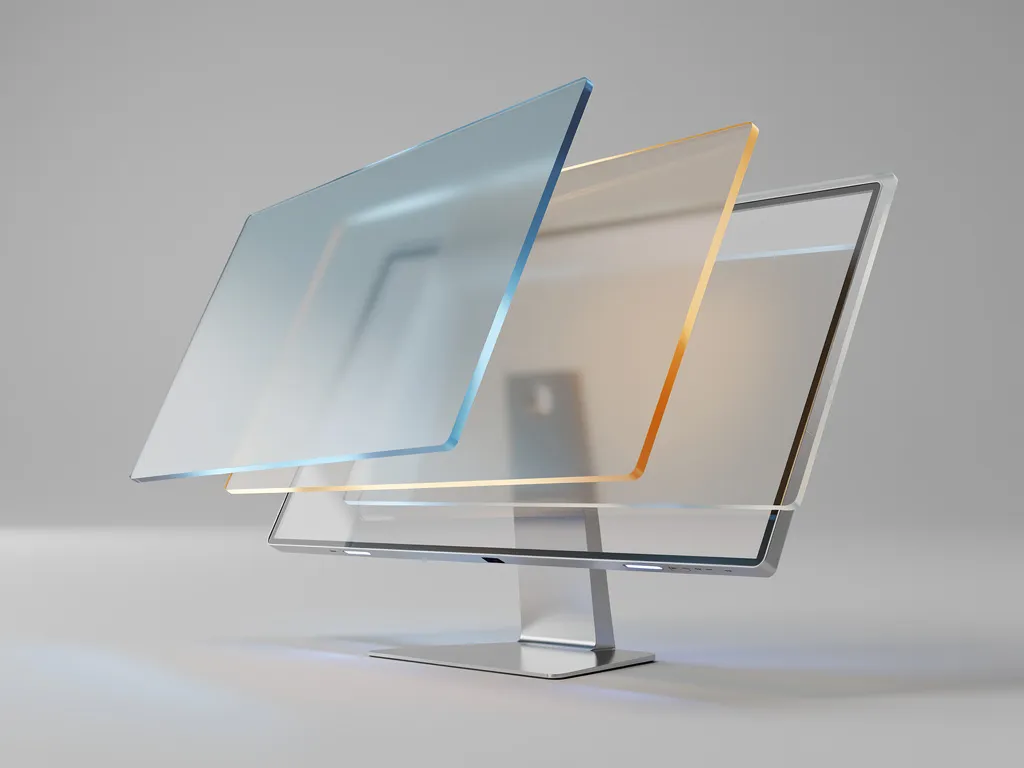
Enter the virtual workspace. This completely free, built-in operating system tool is the ultimate secret weapon for effective digital clutter management without purchasing extra hardware. Let’s explore the powerful psychological benefits of software compartmentalisation and learn exactly how to set up highly distinct digital environments on your computer.
Quick Answer: Key Takeaways
- Using virtual desktops to separate personal and professional workflows strongly reduces visual noise and stops work-related stress from bleeding over into your private downtime.
- Crafting a dedicated deep work environment setup makes it infinitely easier to block out digital distractions and skyrocket your daily productivity.
- You can effortlessly segment your tasks using built-in OS tools, specifically the Windows 11 virtual desktop setup and macOS Spaces productivity features.
- Mastering specific keyboard shortcuts for virtual desktops empowers you to instantly switch mental contexts without completely breaking your workflow.
- Keep your organisational system straightforward: stick to a maximum limit of 2–4 virtual desktops to avoid the frustrating “lost-track” phenomenon.
Why You Need Mental Boundaries for Remote Work
Overlapping personal internet browsing and demanding professional tasks on a single screen creates an immense amount of unnecessary visual noise. This constant, daily blending of digital environments severely drains your mental energy and causes intense decision fatigue. Reputable productivity insights from industry sources like Lifehacker and Fast Company suggest that your brain absolutely requires clear, distinct contextual cues to switch working modes efficiently.
As marketing specialist Connie Jiang wisely notes: “It doesn’t take much before your digital workspace starts to feel crowded, almost noisy… [but] you move with more intention, not just reacting to whatever is open.” By deliberately leveraging these built-in operating system tools, you are actively improving work-life balance with technology. It entirely removes the heavy lifting when trying to build strict mental boundaries for remote work.
How Does Virtual Layering Reduce Digital Distractions at Work?
Hiding irrelevant browser tabs is simply one of the easiest, fastest methods for reducing digital distractions at work. When your personal social media feed is tucked away securely during your core work hours, you instantly remove the tempting urge to mindlessly doom-scroll. Likewise, hiding your active Slack application or Microsoft Teams notifications when you are officially off the clock ensures genuine peace of mind.
The old saying rings true: out of sight truly translates to out of mind. This intelligent desktop strategy promotes incredible mental clarity and vastly aids in reducing visual clutter throughout your entire day. Ultimately, you are physically re-arranging your digital landscape to pave an open highway for calm, intentional focus.
Using Virtual Desktops to Separate Personal and Professional Workflows
What Constitutes a ‘Deep Work’ Environment Setup?
A deep work environment setup acts as your ultimate, entirely distraction-free digital cave. This specific desktop space is exclusively where high-value, highly concentrated tasks happen without any external interruption. Every single piece of software on this particular screen serves a singular, tightly focused professional purpose.
For example, this dedicated desktop might exclusively display a complex Integrated Development Environment (IDE), your essential project documentation, and a background application softly playing ambient focus music. By purposefully stripping away all unrelated applications, your brain rapidly learns to trigger an immediate “flow state” right upon switching to this working view.
What Should Go in Your Personal Workspace?

Your designated personal workspace functionally serves as a relaxing digital sanctuary designed strictly for after-hours tasks. This is the off-the-clock desktop where your casual relaxation and personal home administration finally happen. It should feel completely removed and isolated from your serious professional responsibilities.
This desktop acts as the perfect home for your leisurely social media tabs, a private personal email client, fun streaming apps like Spotify or Netflix, and various online shopping browser windows. The absolute biggest benefit is the overwhelming sense of relief you will feel seamlessly switching over at 5:00 PM. You simply won’t have to look at any stressful, unread corporate emails lingering uncomfortably in the taskbar.
How to Set Up Your Virtual Desktops Automatically
Windows 11 Virtual Desktop Setup
Configuring your new split workspace is remarkably simple using completely native operating system tools. According to officially published Microsoft Windows support documentation, the built-in Task View feature elegantly handles everything behind the scenes. Mastering your windows 11 virtual desktop setup physically takes just a few quick mouse clicks.
- Hover your mouse cursor directly over the small Task View application button permanently located on your bottom taskbar.
- Click the prominent ‘New Desktop’ icon (displaying a plus sign) to instantly generate a fresh, blank workspace.
- Right-click the newly created desktop icons to rename them clearly based on their purpose (for example, typing “Admin”, “Deep Work”, or “Personal”).
macOS Spaces Productivity Setup
Apple users can effortlessly achieve the exact same segmented workflow using their own native, built-in software. Detailed Apple support pages highly recommend utilising the popular Mission Control and Spaces features to reliably manage your open windows. Locking down your daily macOS Spaces productivity routine thoroughly helps keep your Apple computer perfectly organised.
- Swipe upwards forcefully on your Mac trackpad using three or four fingers, or simply press the dedicated physical Mission Control key located on your keyboard.
- Click the bold ‘+’ icon clearly situated in the top right corner of the primary screen to quickly add a brand-new operating Space.
- Click, hold, and drag your specific open applications to firmly assign them to their respective spaces to keep workflows entirely separated.
Can You Customise Virtual Desktop Backgrounds?
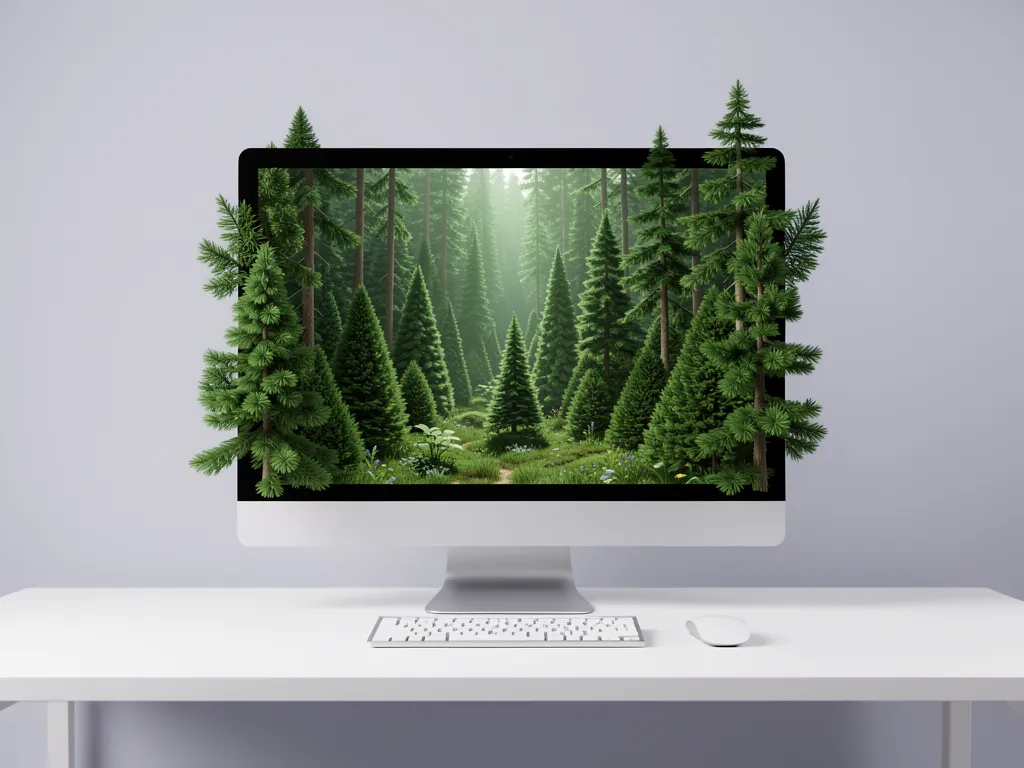
Customizing virtual desktop backgrounds is a thoroughly brilliant psychological trick to visually anchor your mind to a specific task. Giving each digital environment a completely unique wallpaper ensures you immediately know precisely what “zone” you are currently operating within. You might casually choose a serene, calming forest image for your intensive deep work screen, and a fun, lighthearted family photo for your daily personal space.
Pro-Tip Box: When applying these visual wallpaper changes, actively remember to use helpful taskbar organization tips. Configure your computer’s taskbar settings to exclusively show the actively pinned apps heavily relevant to that specific desktop context. This brilliant setting proactively prevents unnecessary visual crowding and keeps your active software tools neatly separated across workspaces.
How to Switch Between Desktops Quickly: Essential Keyboards Shortcuts
Learning exactly how to switch between desktops quickly is the true overarching secret to successfully maintaining this entire productivity workflow safely long-term. Physically reaching out for your computer mouse every single time you need to change digital views aggressively interrupts your active train of thought. Memorising a few incredibly basic software keyboard commands is utterly vital for smoothly streamlining professional workflows.
Below is a highly practical, quick reference guide intentionally designed to help you commit these extremely helpful combinations to your muscle memory. Start actively practising these specific keyboard shortcuts for virtual desktops right away to save time.
| Action | Windows 11 Shortcut | macOS Shortcut |
|---|---|---|
| Open Desktop View | Windows + Tab | Control + Up Arrow (Mission Control) |
| Create New Desktop | Windows + Ctrl + D | Click ‘+’ in Mission Control |
| Switch to Next Desktop | Windows + Ctrl + Right Arrow | Control + Right Arrow |
| Switch to Previous | Windows + Ctrl + Left Arrow | Control + Left Arrow |
| Close Current Desktop | Windows + Ctrl + F4 | Hover over Space & click ‘X’ |
Remote Worker Productivity Hacks: Pro Tips for Digital Clutter Management
Once your split workspace system is actively up and running smoothly, forming a few incredibly smart daily habits will keep things functionally beautiful. These tested remote worker productivity hacks are structured specifically for ongoing, highly sustainable digital clutter management.
- Keep it to a maximum of 2–4 desktops: Abiding by this magic number permanently prevents your operating system from becoming overly complex and confusing to navigate quickly.
- Assign distinct visual cues: Customise those desktop background wallpapers dramatically so you immediately recognise your current digital “zone” at just a fleeting glance.
- Group by intention: Create entirely separate computer spaces primarily based on your daily required energy levels (organising by Deep Focus, Meetings/Communication, and Personal Admin).
- Master the keyboard shortcuts: Pro-Tip: The less you heavily rely on your clumsy mouse to slowly navigate system menus, the drastically easier organizing desktop apps for focus automatically becomes.
Common Mistakes When Managing Virtual Workspaces
- The “Lost-Track” Phenomenon: Repeatedly opening far too many overlapping desktops (typically 5 or more at once) heavily guarantees you will eventually lose track of where key project documents actually live. Stick strictly to the bare essentials to easily avoid total operational frustration.
- Failing to “Close Out”: Carelessly leaving your heavy professional work desktops wide open overnight entirely ruins the protective mental barrier you worked hard to build. Practise a strict daily cleanup routine by formally closing all unused desktops to quickly clear system memory and rightfully deliver a clean slate for the following morning.
- Technical Drift: Occasionally, forced operating system restarts or major automated updates might temporarily reset your carefully chosen custom wallpaper backgrounds. Please don’t panic if this happens unexpectedly; just quickly reassign your selected visual cues and confidently move on with your day.
- Ignoring the Cloud Backup: Using a wonderfully neat virtual desktop purely locally on your laptop is fantastic, but it definitely doesn’t easily replace secure file storage. Ensure you are continuously and safely syncing to a protected central hub (like Microsoft OneDrive or Apple iCloud) to shield your vital files appropriately against sudden local hardware hardware failure.
Wrapping Up: Step Into a Clutter-Free Digital Life
Deliberately separating your daily digital environments is ultimately about powerfully taking back total, unapologetic control of your limited mental energy. By actively and firmly compartmentalising your busy computer screen, you successfully preserve your highly vital personal downtime and significantly reduce typical daily office stress. It is an incredibly powerful, elegantly simple, and entirely free way to wholly reinvent exactly how you approach standard, repetitive computer tasks.